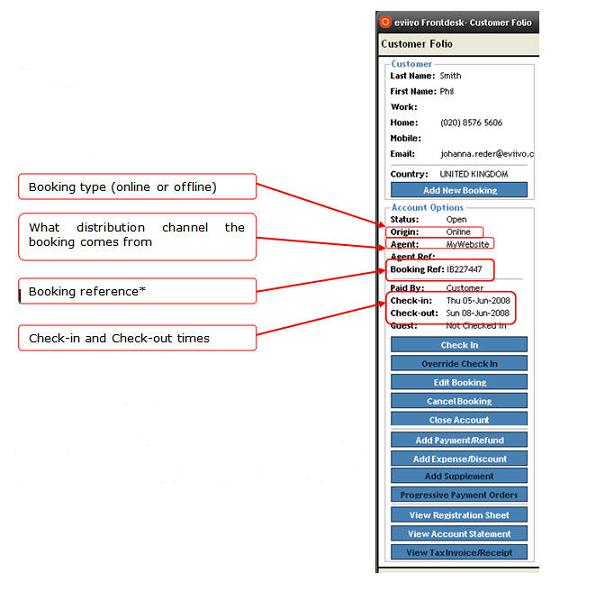
The Customer Folio is where all booking and other information for each customer is stored. It is from within this area that the customer account is managed.
The Customer Folio displays information about the bookings you receive. The side panel shows useful information such as whether the booking was made online or offline, which distribution channel the booking came through, the booking reference* and the check in and check out times.
* You will need to quote this number if you contact our Customer Support Team or lastminute.com with queries about a booking.
In the Customer Folio screen, when the Accounts tab is selected, all accounts for this customer are displayed. Each line in the Accounts table in the top half of the screen represents a different account (which may contain one or more booked products). Click to highlight the Account you wish to view.
In the bottom half of the screen, click on the Customer tab. This displays a list of all products and/or other expenses to be paid by the Customer direct to you.
For online bookings where the eviivo interim merchant account is being used, the Customer Folio will display the following information:
Click on the Agent tab. This displays a list of all products and/or other expenses to be paid by the Agent (if an Agent Booking) direct to you.
A summary of amounts owed by the Customer, the Agent and the total are displayed at the bottom of this screen.
In the Customer Folio screen, when the Details tab is selected, all contact information previously recorded about the Customer is displayed.
To edit any of these details, click in the fields and make the necessary changes.
Click on the "Save" button.
In the Customer Folio screen, when the Notes tab is selected, all marketing and other general information about this Customer is displayed. Note that this information is generic to the Customer, and not specific to any particular booking or account.
To edit any of these details, click in the fields and make the necessary changes.
Click on the "Save" button.