Payments and Refunds
If you are a VAT registered business, it is important to note that eviivo frontdesk works on the principle that a tax point is created every time you take a payment, e.g. if a booking occurs online, eviivo frontdesk will issue the customer a VAT invoice at the time of booking.
frontdesk® automatically calculates whether a payment or refund is due from a customer to save you time and reduce accounting mistakes. The payment screen lets you select which items in the Customer Folio you want a guest to pay for and will calculate how much is due. The system is flexible enough to support progressive and deposit payment scenarios. Please note that it is not possible to enter a refund or payment into frontdesk® unless there is a corresponding expense in the Customer Folio.
Add a Payment To a Customer
-
.
-
In the Customer Folio screen, click to highlight the particular account you wish to add a payment to.
-
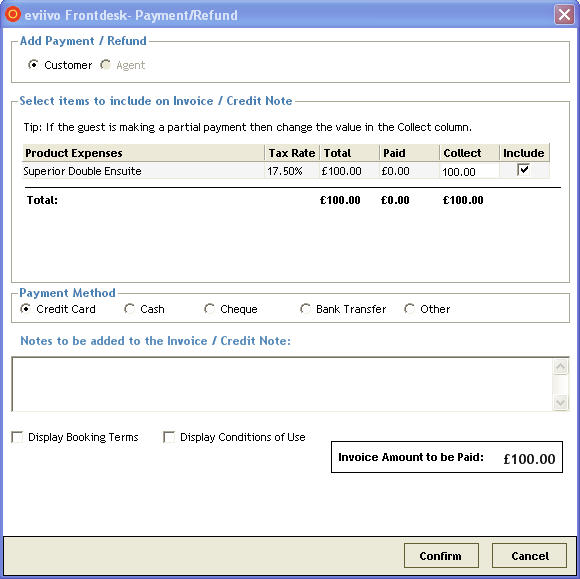
Click on the "Add Payment/Refund" button from the left hand menu. The following screen will appear:
-
-
The expenses on the account will be listed. To enter a part-payment, click into the "Collect" box, and enter the payment amount. It is only possible to make a part-payment on a Product Expense, e.g. Double Room. You must enter the full amount to be paid on Account Expenses, e.g. Breakfast. If you do not wish to have an expense included in this payment, un-check the "Include" box beside that expense.
-
Select the Payment Method; either Credit Card, Cash, Cheque, Bank Transfer, or Other.
-
Add any Notes that will appear on the invoice that are specific to this payment/customer.
-
If you want your online booking terms and conditions to be displayed on the invoice, tick the appropriate boxes. These will be printed on the 2nd page of the invoice.
-
Click on the "Confirm" button.
Details of this payment will be displayed when the Customer tab is selected within the Customer Folio. The value will be deducted from the amount owing by the Customer. You will not be able to check this customer out/close the account until all expenses to be paid by the customer are paid in full.
Add a Refund for a Customer
When an expense has been paid which is then cancelled, the system will automatically calculate the total amount owing to the customer. When a refund is processed, a credit note is produced.
-
.
-
In the Customer Folio screen, click to highlight the particular account you wish to add a refund to.
-
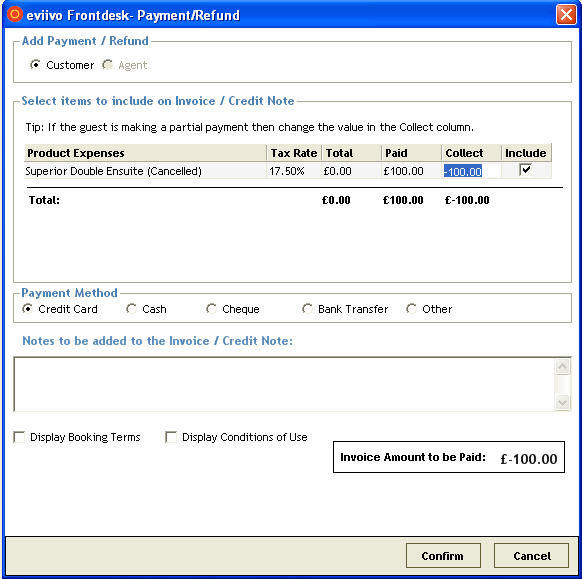
Click on the “Add Payment/Refund” button. The following screen will appear:
-
The system will calculate the total amount owing to the customer and enter this as the default amount to be refunded.
-
To enter a part-refund, click into the "Collect" box, and enter the refund amount. It is only possible to make a part-refund on a Product Expense, e.g. Double Room. You must enter the full amount to be paid on Account Expenses, e.g. Breakfast.
-
Select the Payment Method; either Credit Card, Cash, Cheque, Bank Transfer, or Other.
-
Add any Notes that will appear on the credit note that are specific to this payment/customer.
-
If you want your online booking terms and conditions to be displayed on the credit note, tick the appropriate boxes. These will be printed on the 2nd page of the credit note.
-
Click on the "Confirm" button.
Add a Payment From an Agent
When making an agent booking, you can specify whether the product will be paid by the Customer or the Agent. SEE ALSO: Make a New Booking - Accommodation. In theCustomer Folio, select the Agent tab to see details of the account if you have specified payment is to be made by the Agent.
-
.
-
In the Customer Folio screen, with Accounts tab selected, click to highlight the particular account you wish to add a payment to.
-
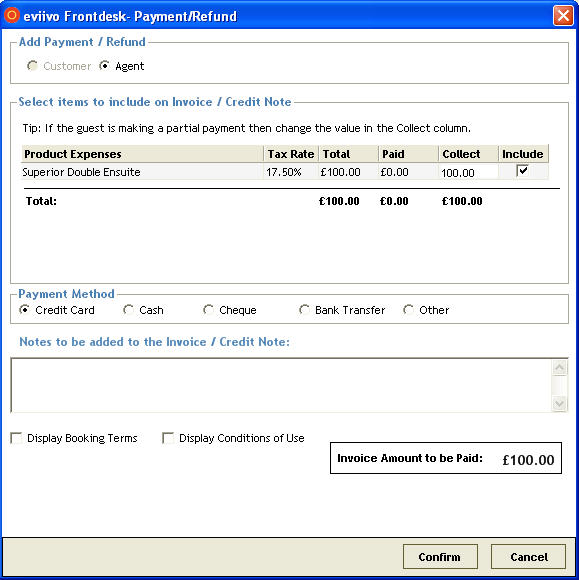
Click on the "Add Payment/Refund" button from the left hand menu. The following screen will appear:
-
If during the booking it was specified that the Agent would pay for the products, the Agent option will be selected at the top of the screen. Otherwise, the Customer option will be selected.
-
The expenses on the account will be listed. To enter a part-payment, click into the "Collect" box, and enter the payment amount. It is only possible to make a part-payment on a Product Expense, e.g. Double Room. You must enter the full amount to be paid on Account Expenses, e.g. Breakfast. If you do not wish to have an expense included in this payment, un-check the "Include" box beside that expense.
-
Select the Payment Method; either Credit Card, Cash, Cheque, Bank Transfer, or Other.
-
Add any Notes that will appear on the invoice that are specific to this payment/customer/agent.
-
If you want your online booking terms and conditions to be displayed on the invoice, tick the appropriate boxes. These will be printed on the 2nd page of the invoice.
-
Click on the "Confirm" button.
If the account is paid by an Agent, details of this payment will be displayed when the Agent tab is selected within the Customer Folio. The value will be deducted from the amount owing by the Agent.
To print a summary of expenses and payments on an Agent account, in the Customer Folio, click on the "View Account Statement" button, then "Print". The document will be titled, "Agent Order Confirmation".
Add a Refund to an Agent
When an expense has been paid which is then cancelled, the system will automatically calculate the total amount owing to the agent. When a refund is processed, a credit note is produced.
-
.
-
In the Customer Folio screen, click to highlight the particular account you wish to add a refund to.
-
Click on the “Add Payment/Refund” button. The following screen will appear: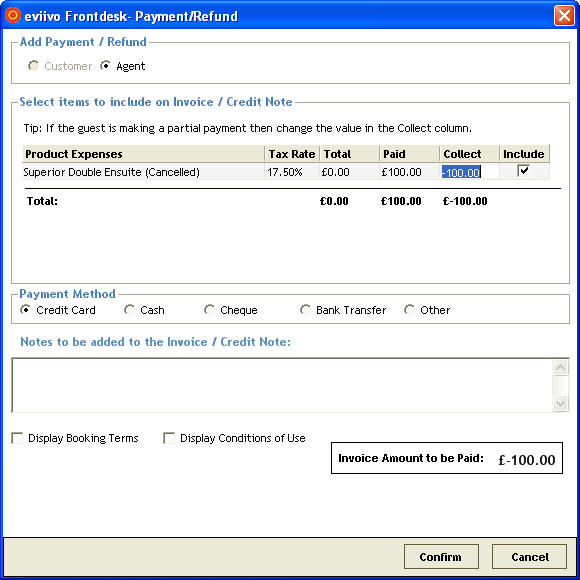
-
The system will calculate the total amount owing to the agent and enter this as the default amount to be refunded.
-
To enter a part-refund, click into the "Collect" box, and enter the refund amount. It is only possible to make a part-refund on a Product Expense, e.g. Double Room. You must enter the full amount to be paid on Account Expenses, e.g. Breakfast.
-
Select the Payment Method; either Credit Card, Cash, Cheque, Bank Transfer, or Other.
-
Add any Notes that will appear on the credit note that are specific to this payment/customer/agent.
-
If you want your online booking terms and conditions to be displayed on the credit note, tick the appropriate boxes. These will be printed on the 2nd page of the credit note.
-
Click on the "Confirm" button.
Reverse a Payment or Refund
-
-
In the Customer Folio screen, click to highlight the required account.
-
Click either the Customer or Agent tab to locate the payment/refund to be edited.
-
Right click on the relevant payment/refund and select Reverse Payment/Refund.
-
Answer "Yes" to the message that appears asking you to confirm the reversal.
A note will appear on the Customer Folio against this reversal, indicating which invoice the reversal applies to.