
There are two different rules within frontdesk that can be applied either separately in combination to create a number of different scenarios.
More than one pricing rule can be applied to a product. When frontdesk searches for a price to apply to an available Product, it first checks to see if any Special Rates are available. If not, it will default to the Per Day Rate.
Rate Per Day
The first is the Rate Per Day which is entered to create a Rate Plan and can be amended using the Daily Rate Manager. Minimum stay requirements can be applied to these daily rates.
Special Rates
Special Rates allow you to set up a price (different from the per day rate) that applies if particular consecutive nights are booked. Special Rates can apply to stays commencing on certain days of the week throughout a season (eg every Monday) or on specific dates only (eg 24th and 30th December). You can also enter a price for additional nights booked and specify a rate and limit the number of extra nights that can be booked at this rate.
To Set up a Special Rate
1. Click on the Manage tab.
2. Click on Inventory Setup in the left hand menu
3. Click on Products and Rates and the Products and Pricing screen will open
4. Scroll down to the Rate Plans section of this screen and click on the season you wish to create Special Rates for. If you haven’t already created this, see Setting up Your Rate Plans
5. Click on " Add Special Rate"
6. Enter a Description of the special e.g. Midweek Discount, 7 Night Rate, Christmas Special etc. Bear in mind that this title may be seen by your customers
7. Enter the value of the total stay and the number of nights this price applies to
8. On the following line, enter the rate that additional nights can be booked at, if this varies from your Rate Per Day. Enter the number of nights this rate is available for
9. If the Special Rate is only available commencing on certain days of the week (e.g. all Mondays during this season) or particular date/s (e.g. only 24th and 30th December), enter these details
10. Click Save. You will see a message telling you that your rates have been saved. Click " Continue"
11. To enter another Special Rate, follow steps 5-10
Creating Commonly Used Prices
Four commonly used pricing scenarios are shown below. This section shows you how to:
create simple daily pricing (e.g. £100 per day). See Scenario 1below
add a minimum stay requirement (e.g. customers must book 2 days on the weekend). See Scenario 2below
give a discount for an extended stay of a set number of days (e.g. stay exactly 7 days and receive a cheaper rate; on the 8th day the price reverts to the usual rate per day). See Scenario 3below
give a discount for an extended stay or longer (e.g. stay 7 days or more and receive a cheaper rate; on the 8th day the price continues at the lower rate) See Scenario 4below
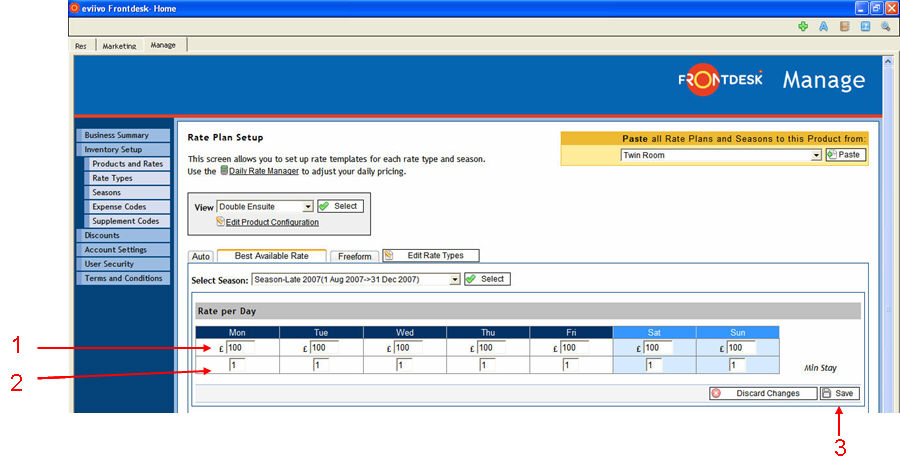
priced at £100 per day regardless of the day of the week and
has no minimum booking period
Enter a Rate Per Day of £100 for each day of the week
There are no minimum stay requirements so '1' is entered here
Click Save
Scenario 1:
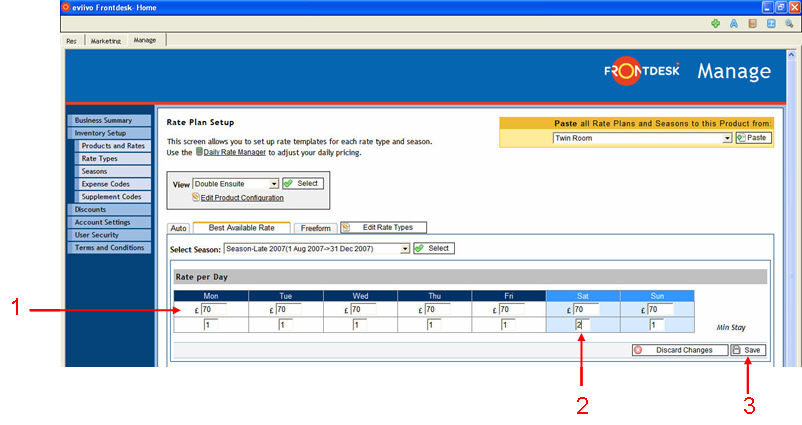
priced at £70 per day and
a minimum of 2 nights must be booked on the weekend
£70 is entered as the Rate Per Day
‘2’ is entered as the minimum stay for Saturday, preventing customers from booking Saturday night only. It can only be booked as part of a 2 night minimum stay
Click Save
Scenario 2:
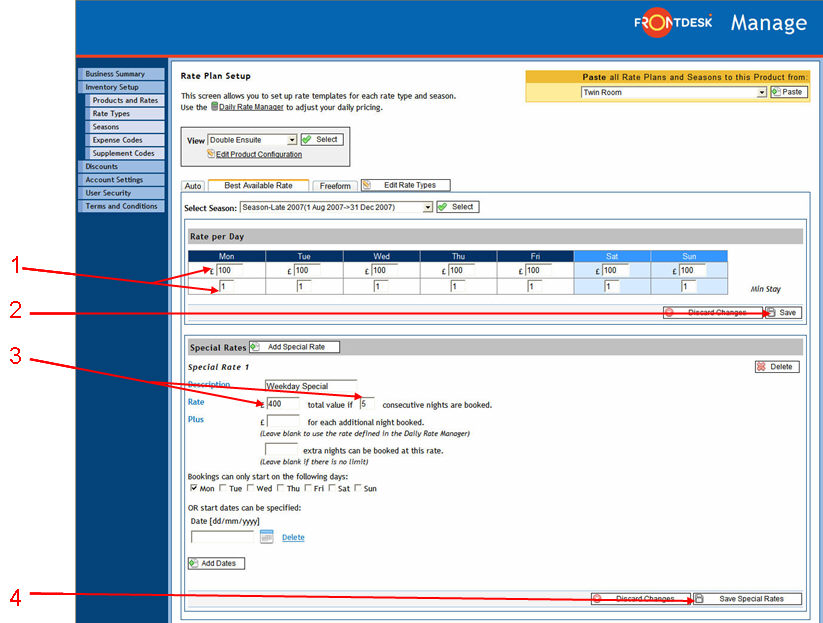
priced at £100 per day, with no minimum stay requirement
if the customer books 5 days exactly, the rate reduces to £80 per day
on the 8th day onwards, the customer pays the normal daily rate (£100 per day)
£100 is entered as the Rate Per Day and the minimum stay requirement remains as '1' night
Save the Rate Per Day
Enter the Special Rate of £400 total for a 5 day period. Note that the 'additional night booked' rate underneath is left empty.
Save the Special Rate
Scenario 3:
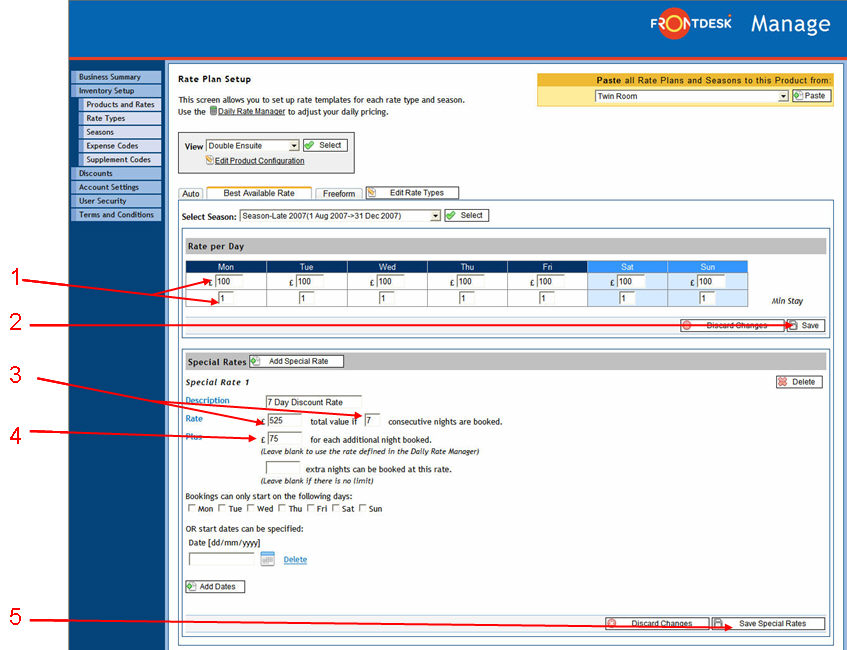
priced at £100 per day, with no minimum stay requirement
if the customer books 7 or more days, the rate reduces to £75 per day
Enter a Rate Per Day of £100 for each day of the week
Click Save
Enter the Special Rate of £525 total for a 7 day period
Enter the amount for the 8th and following nights. In this case it continues to be £75 per night
Save the Special Rate
Scenario 4:
Non-Serviced Accommodation
If stays must be booked set number of nights, more than one Special Rate can be applied to cater for the pricing scenario where there is a fixed price for 3, 4, 5, 7 or 14 night stays for the same product. Simply click on ".gif) Add Special Rate" as many times as you need the rule added.
Add Special Rate" as many times as you need the rule added.
SEE ALSO