 Each product must have Rate Plans, which is where your pricing strategy for the year ahead is entered. Each product can have different prices for each rate type and season. Rate plans include any custom Price Types that you have created in the past.
Rate Plans will need to be set up for every Product, although they can be copied from one Product to another.
Once your Rate Plans have been set up, the Daily Rate Manager allows you to change prices on individual days within a Season in response to changing demand, giving you total flexibility and control over your pricing.
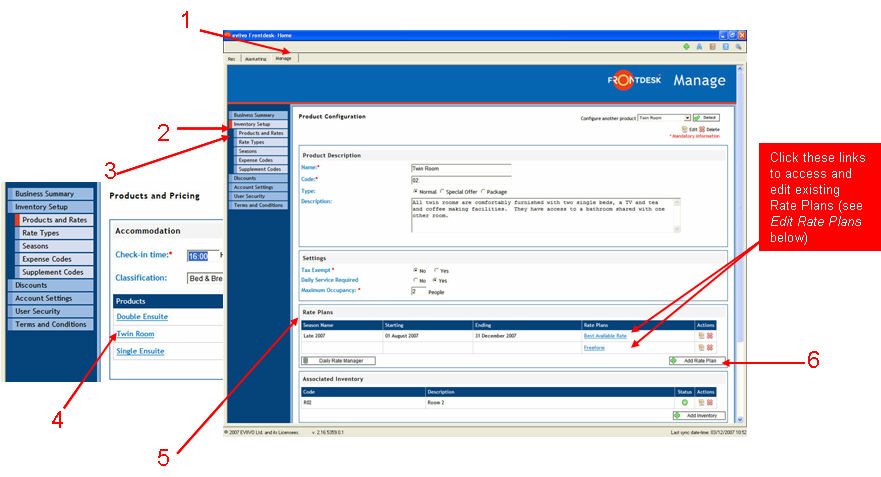
1. Click on the Manage tab
2. Choose Inventory Setup from the menu on the left
3. Click on Products and Rates
4. Click on the name of the Product you are going to create a Rate Plan for
5. Scroll down to the Rate Plan section of this screen
6. Click " Add Rate Plan", which opens the Rate Plan Setup screen
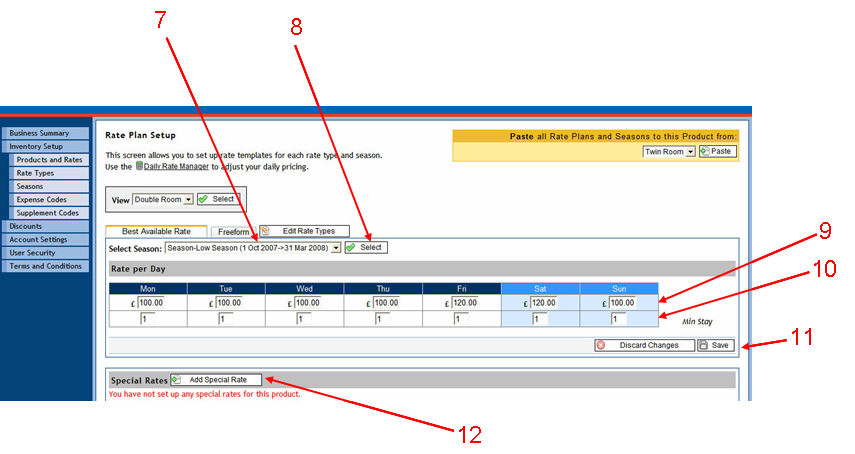
7. Select the new Season you have created from the drop-down menu
8. Click on Select
9. Enter the Rate Per Day in the relevant boxes. These are the default rates for every day during the selected season.
10. If you have any minimum stay requirements, enter them in the Minimum Stay boxes. See Pricing Rules for details on how to create more complex pricing rules.
11. Click on Save
12. Enter any Special Rates. See Pricing Rules for details on creating special rates.
13. Click on Save
14. To enter prices for another Season for this product, simply follow steps 7-13. If Rate Plans are the same for two Seasons within a Product, you can copy them from one Season to another using the yellow Copy Rate Plans Across Seasons box at the bottom of the Rate Plan Setup screen.
15. Rate Plans need to be created for each Product. Follow steps 4-13 to create Rate Plans for subsequent Products. If the Rate Plans are identical for two Products (eg Twin Ensuite and Double Ensuite), you can copy the Rate Plans from one Product to another using the Paste all Rate Plans and Seasons box at the top left of the Rate Plan Setup screen.
Setting up Rate Plans (image 1 of 2):
Setting up Rate Plans (image 2 of 2):
Editing Rate Plans
Changing the Rate Plans once they have been set up is very simple to do. Any changes that have been made to the Rate Plans by using the Daily Rate Manager will be lost.
1. Click on the Manage tab
2. Choose Inventory Setup from the menu on the left
3. Click on the name of the Product you wish to amend
4. Click on the Rate Plan you wish to change (see red box in Setting up Rate Plans image 1 above)
5. In the Rate Plan Setup screen, overwrite the prices or minimum durations as required
6. Click ".gif) Save"
Save"
7. You will be prompted to Save again on the following page.
The Daily Rate Manager allows you to change rates on individual days within a Season in response to changing demand.
Any daily rates entered in your Daily Rate Manager override your Rate Plan, giving you the flexibility to adjust your prices on a daily or weekly basis as required.
To modify Rate Plans using the Daily Rate Manager:
1. Click on the Manage tab
2. Choose Inventory Setup from the menu on the left
3. Click on Products and Rates
4. Click on the " Daily Rate Manager" button adjacent to the Product you want to amend the prices for
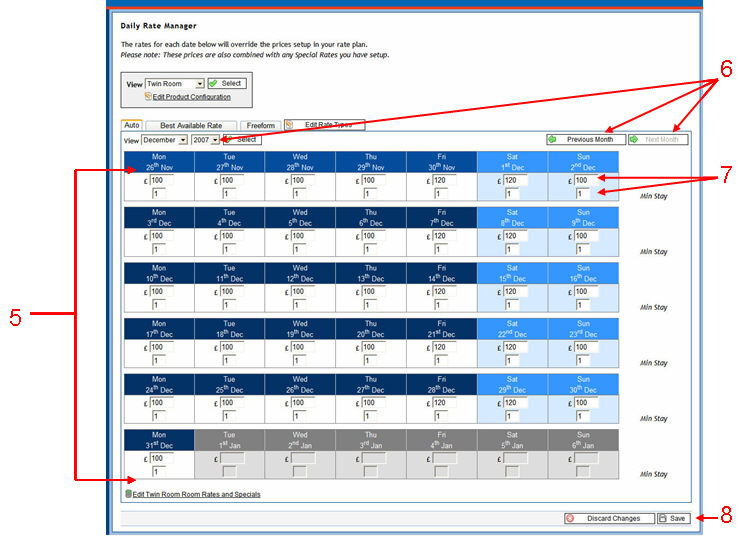
5. The Daily Rate Manager screen will open and you will see that the prices previously entered in the Rate Plan are shown here.
6. Use the " Previous Month" and "
 Next Month" buttons or the View drop down menu to find the month you wish to edit
7. Over-write the prices and minimum stays you wish to amend
8. Click on " Save"
Using the Daily Rate Manager (image 1 of 2):
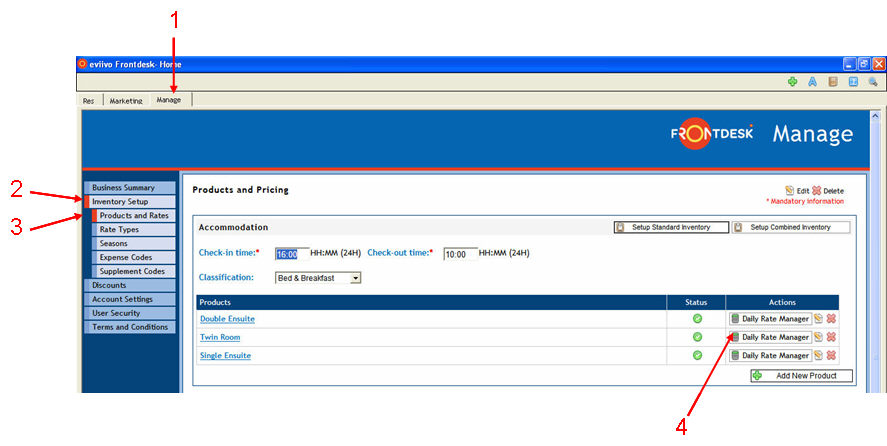
Using the Daily Rate Manager (image 2 of 2):