Customer Relationship Management (CRM) Information assists in developing marketing plans to improve the profitability of your business, allowing you to target market segments with offers and deals specifically designed with customer's attributes in mind.
The CRM functionality within eviivo frontdesk enables you to search for customer contact information by several criteria. You can then use this information to contact or market to your customers in a number of different ways.
There are two types of CRM data captured in the System:
- Source of Enquiry The source of every booking, e.g. Internet, Word-of-Mouth, Newspaper or Travel Guide advertising.
- CategoriesThe grouping of customers into a number of pre-defined marketing segments, e.g. By age (18-25), Purpose of Visit (Business, Leisure).
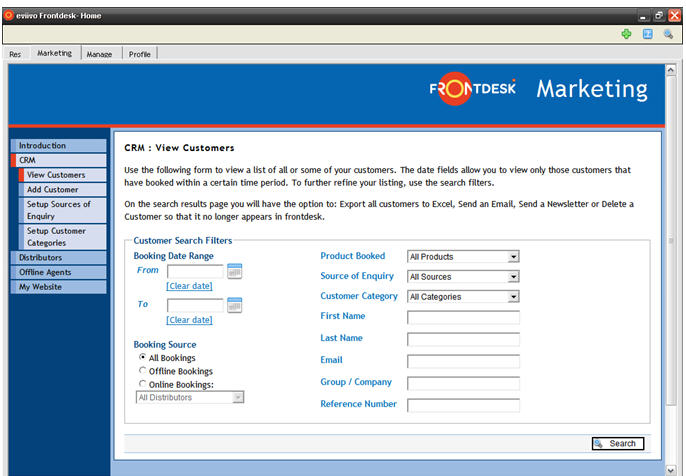
The Search Customers function allows for the search of your database for a particular customer or group of customers, using a range of search criteria.
In Marketing, click on CRM from the left hand menu.
Click on ViewCustomers.
Select and enter information into one or more of the Customer Search Filters fields. For example, you can create customer lists based on various search criteria including:
the channel the customers booked through (under Booking Source, select Online Bookings and then specific distribution channels)
when the customer stayed (under Booking Date Range, enter specific dates)
how the customer heard about your business (select an option in Source of Enquiry)
whether the booking was made online or offline (under Booking Source, select Offline Bookings or Online Bookings.
Click on the " Search" button. The system will generate a list of results based on the criteria specified above.
Choose to Export Results into a Wordä or Excelä file, Send Email, or Send Newsletter.
Once a Customer Search has taken place, there is the option to export the results into a file on your computer's hard drive. The exported database file is in a Comma Separated Value (CSV) and is compatible with most programs such as Wordä and Excelä .
In Marketing, click on CRM from the left hand menu.
Perform a Customer Search to produce a list of search results.
Click on the "Export Results" button above the list of results. Follow the prompts shown on the screen to export to Wordä or Excelä
In Wordä or Excelä , you can then be able to edit and manipulate this file and use it to create your mail merge once you have created your letter or spreadsheet.
EVIIVO frontdesk enables you to send emails to one or more customers, or to mailing lists you create from your database.
In Marketing, click on CRM from the left hand menu.
Perform a Customer Search to produce a list of search results.
Click on the "Send Email" button above the list of results. The Email Form screen will open.
Select to send either a Plain Text or HTML email.
The From email address will be that which was specified in your Business Details.
Enter the Subject title and message. (You may cut and paste from a Wordä document.)
Click on the "Preview Email" button.
Click on "Back" button to make further revisions, otherwise, click on the "Send Email" button.
EVIIVO frontdesk also enables you to send customised newsletters to mailing lists you create from your database. You may use this newsletter to provide information and news to your customers or send promotional or general marketing material.
In Marketing, click on CRM from the left hand menu.
Perform a Customer Search to produce a list of search results.
Select to send either a Plain Text or HTML newsletter.
Enter the Newsletter Title (the overall theme or subject of this newsletter).
Enter the Heading of the First Article (story/news item).
Enter the copy (text) for the first article. (You may cut and paste from a Wordä document.)
Add a photograph/picture that relates to this article if necessary. Click on the "Browse" button to locate and select the file.
Click on the "Preview Newsletter" button.
Click on "Back" button to make further revisions, otherwise, click on the "Send Newsletter" button.
The Add Customer function allows you to enter details for any customers you would like on your database, but for whom you have not yet made a booking in EVIIVO frontdesk. For example, you may have maintained a database prior to switching to the EVIIVO frontdesk and wish to transfer information on customers who have booked with you using your previous reservation system.
In Marketing, click on CRM from the left hand menu.
Click on Add Customer.
Enter all known information into the relevant fields.
Click on the " Save" button.