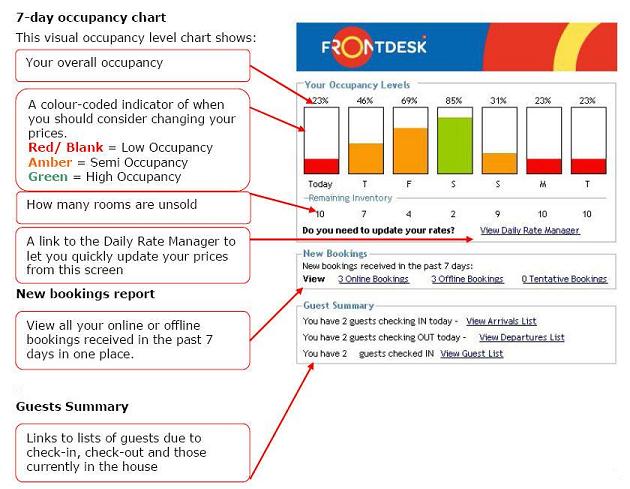
There are four standard views that can be used in Res. These views summarise your bookings by either:
Click on one of the View Bookings By tabs to select the view required.
SEE ALSO Make a New Booking.
The View Bookings by Today screen provides a summary of the day's bookings. The large blue panel on the right hand side of the screen (not shown below) displays any Information Updates, messages or notices provided other users of the eviivo frontdesk system.
Using the Today screen, you can:
View your occupancy levels over the next seven days. When the daily indicator is red or amber, you may wish to adjust your prices to attract more bookings. Click on the Daily Rate Manager link to quickly amend your prices.
See your new bookings. The New Bookings section of the today screen allows you to see the number of online, offline and tentative bookings received.
View a guest summary. The Guest Summary section of the today screen links to lists of guests that are due to check in or check out, as well as those currently in-house.
This view displays bookings in a chart format, labeled with the customer's name, and colour-coded by the status of the booking.
The colour code indicates that the bookings:
are available (clear)
are unavailable as seasons have not been created (grey)
are closed out, preventing online and offline sales (black)
are a tentative booking (orange)
are a confirmed booking (blue)
are an online booking (purple)
are a confirmed booking where the customer has been checked in (light green)
are a confirmed booking where the customer has been checked out (dark green)
are a partial or full booking - for products that can take multiple bookings, e.g. tours (red/light blue)
are an Agent booking on behalf of a customer (yellow)
The default view shows bookings commencing from 'today'.
To move to a different date, click on the Starting Date calendar icon, scroll backwards or forwards to the required month and/or and click on the date you require. You can also place the cursor on the blue month bar to scroll manually forwards or backwards.
To change the time scale, click on the magnifying glass icons to zoom in and zoom out, to decrease the time increments displayed, e.g. by hour, or to increase the time increments, e.g. view by month.
To view only certain classifications of products, e.g. accommodation, tours, attractions or events, click on the Classification drop down box and select from the list of available classifications.
Right-click on an existing booking (for which the account is 'Open') to perform the following actions:
Check In a Customer (if not yet checked in)
Check Out a Customer (if checked in)
Transfer Booking (to another customer)
Print a copy of the Diary screen by selecting Print Preview
View the Colour Key for the types of bookings that can be made.
SEE ALSO Make a New Booking.
This view displays a summary of all of today and tomorrow's Available, Cancelled, Tentative and Confirmed bookings by Product and Number of Inventory (or available capacity if a multi-booking product).
To view a different date click on the date you require, or move forwards or backwards by clicking on the arrow buttons.
Click on the number at the top of the Confirmed column to produce a list of customers who have confirmed bookings for that product/date. Click on the number at the top of the Cancelled column to produce a list of customers who have cancelled bookings for that product/date.
This view displays a list of customers and their account details based on a range of selectable criteria.
Select the options required from the Criteria to display the necessary information.
This screen is useful to track which guests have made payments on their accounts, e.g. are online bookings, on check-out. Right click on a booking to display the options available.